Load Translatable SAC Objects
-
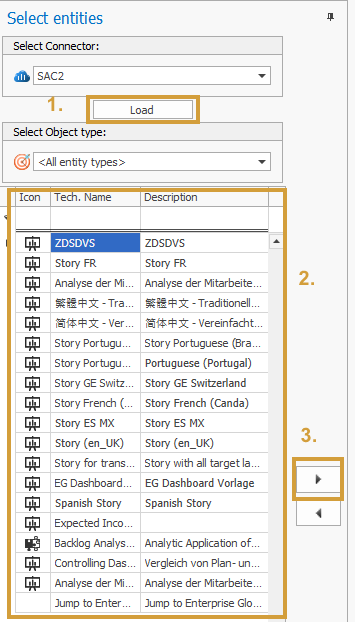
Select the respective SAC system and click “Load.”
-
All SAC objects for which the mode “Select for Translation” has been enabled in SAC are displayed in the list. You can use the Object Type filter to refine the selection.
For more information, check out this SAP documentation:
https://help.sap.com/docs/SAP_ANALYTICS_CLOUD/00f68c2e08b941f081002fd3691d86a7/16fa42a7ece9468a82a92d13e4dcbd84.html?locale=en-US -
Select the objects which you like to translate and click on the right error or drag and drop the elements to the workspace.
Select Target Languages
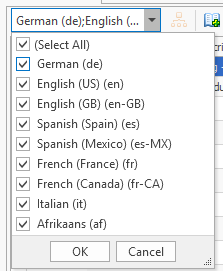
Select the target languages into which you want to translate the texts of the SAC objects.
In the Translation Steward Settings , you can define which languages should be displayed in the workspace.
Translate Texts into Multiple Languages
All texts of the selected SAC object are then displayed and can be translated.
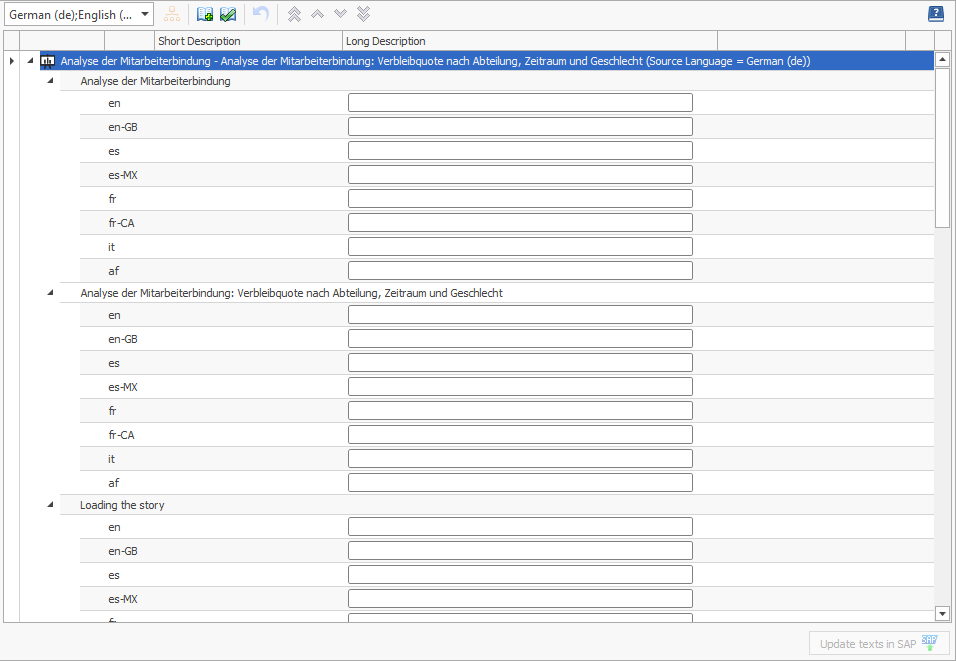
You cannot translate the texts of the source language!
In this example, the target language “German” was selected; however, as shown, no German-related (de) fields are available.
Existing Translations
In some cases, descriptions may already exist. However, the SAP APIs currently do not provide a way to retrieve and display existing translations.
To provide a certain level of transparency, we indicate whether specific languages have already been partially or fully translated.
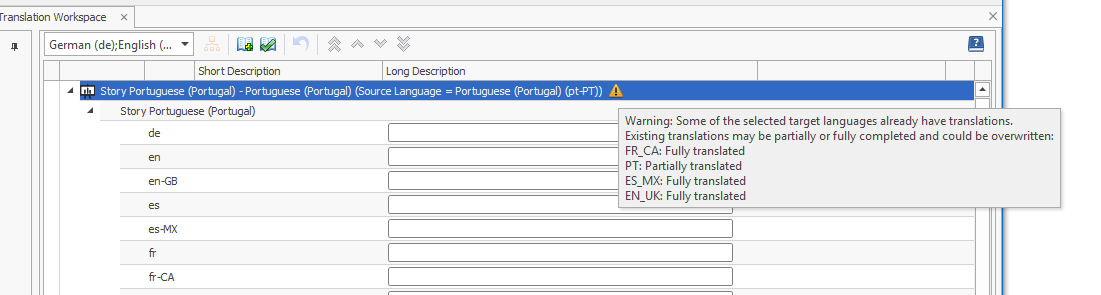
We recommend checking existing translations directly in SAP Analytics Cloud (SAC) beforehand to avoid unintentionally overwriting content.
Existing texts are only overwritten if the corresponding description field is explicitly filled. If the field is left empty, the existing description will not be deleted.
We recommend using the dictionary to ensure consistent translations for source languages and to enable suggested descriptions instead of manual entries.
Work with the Central Dictionary
The texts of the source languages that have been added to the workspace can be incorporated into the dictionary.
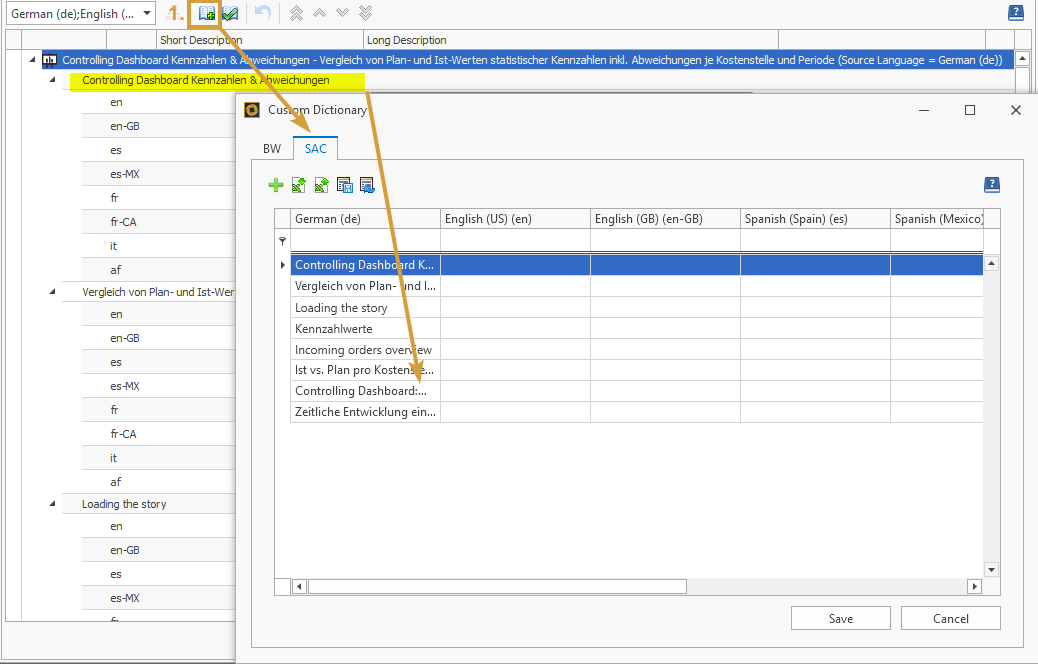
The texts can be found in the “SAC” tab.
The dictionary can be downloaded in Excel format, translated, and uploaded again. Manual editing is also possible directly within the dictionary.
Suggestions in the Workspace
For the texts in the workspace, the system performs the following check:
It evaluates whether translation suggestions are available in the dictionary for the source language texts (e.g., DE: Controlling Dashboard Kennzahlen & Abweichungen) and the corresponding target language (e.g., EN: Controlling Dashboard: KPIs & Variances).

All available suggestions can also be inserted using the corresponding button:

Update Texts in SAC
Once completed, all translated texts can be uploaded to SAP Analytics Cloud (SAC) via the dedicated button.