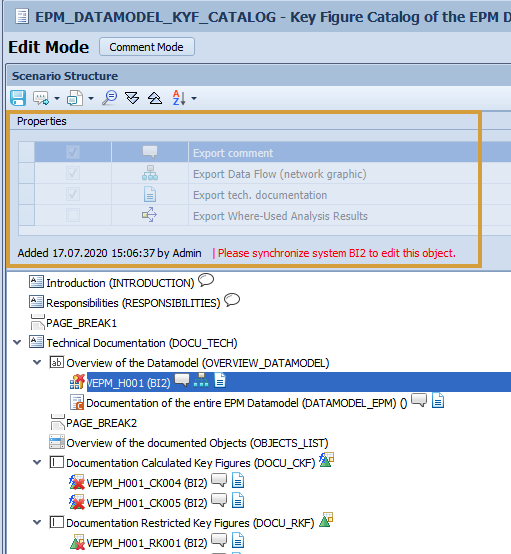
With this function, downloaded Scenario files can be uploaded and thus restored. You can find information on how to download these Scenario files here:
Scenario Download
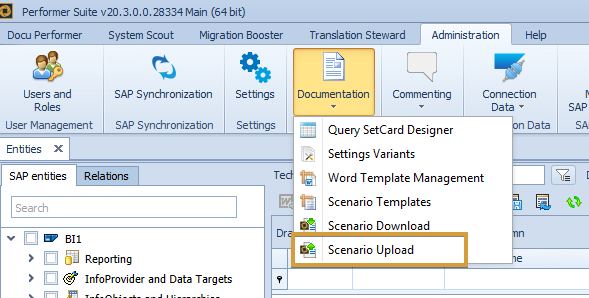
The Scenario Upload function can be found here:
The Scenario files can then be uploaded via "Upload Scenarios" or via drag and drop:
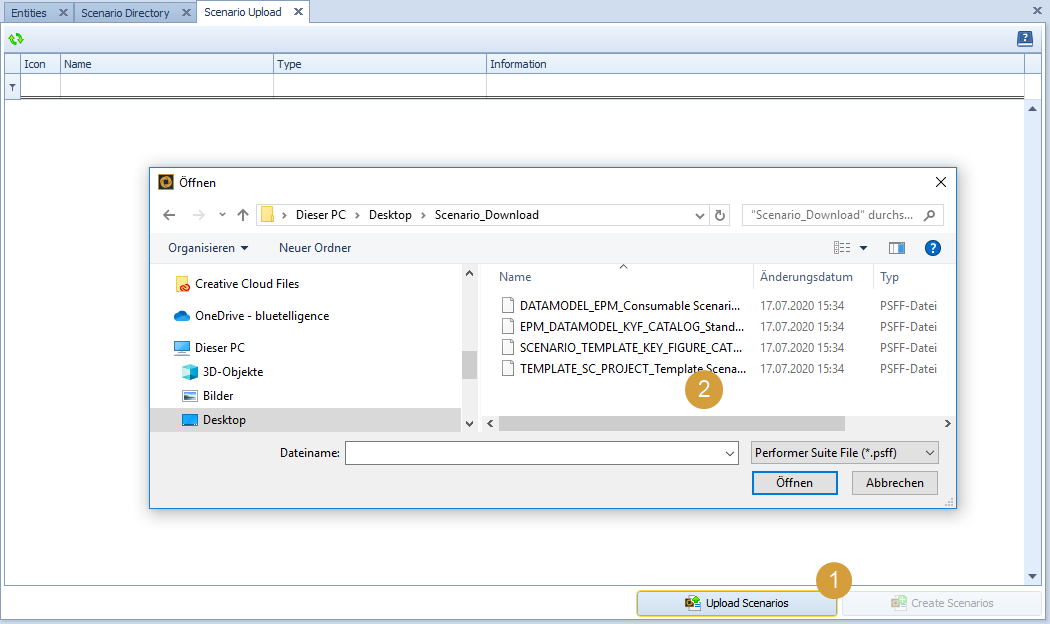
The selected Scenario files are then displayed in the grid. The "Information" column also contains further information on whether the Scenario can be created without problems or whether changes need to be made.
Selected Scenarios can be removed from the grid via the context menu.
The Scenario files can be restored via the button "Restore Scenarios". If all Scenarios have been successfully created, this is displayed as follows:
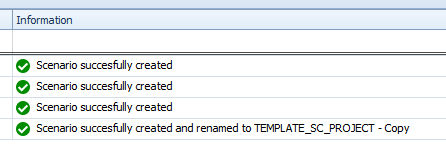
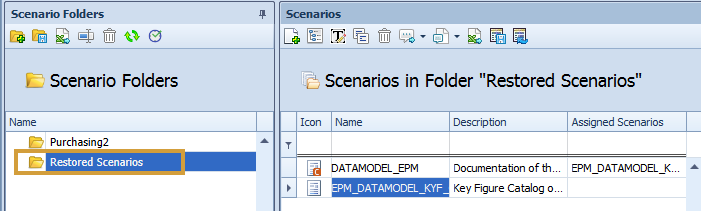
The restored Scenarios are stored in the "Restored Scenarios" folder. Once created, they can be moved to the correct folders.
Restored Scenario Templates are not added to the folder "Restored Scenarios" but can be accessed under Administration > Documentation > Scenario Templates.
Almost all elements and contents of the Scenario are restored:
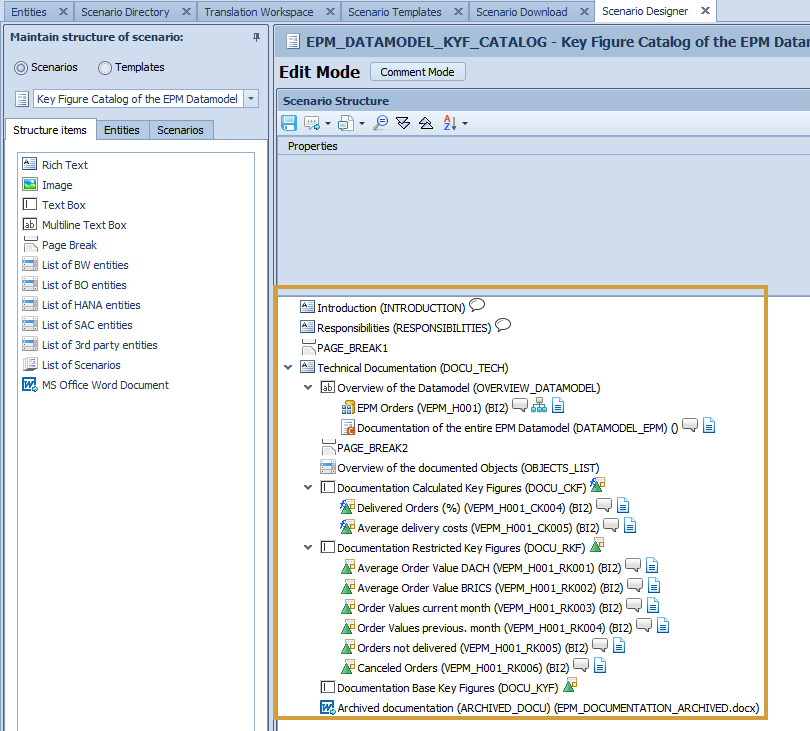
What content and configurations are restored?
-
Information of the Scenario (Technical name, multilingual descriptions, Type)
-
Automatic unassignment of deleted entities during synchronization
-
-
-
-
-
-
-
-
-
-
-
-
-
-
-
-
-
-
-
-
-
-
-
Further facts regarding Scenario restoration
What happens if a standard Scenario is uploaded without an integrated Consumable Scenario?
→ During the upload process, the column "Information" shows that the standard Scenario is restored without the Consumable Scenario and the Consumable Scenario will be removed from the Standard Scenario structure.

What happens if a Scenario with the same technical name already exists in the target database as the Scenario to be restored?
→ The Scenario will still be created and the suffix "- Copy" is added to the technical name.

What happens if the restored Scenario contains SAP objects that do not exist in my target database?
→ The SAP Objects will be restored and have an intermediate state, in which no object-specific settings can be defined. After synchronization, the Objects can be edited.