
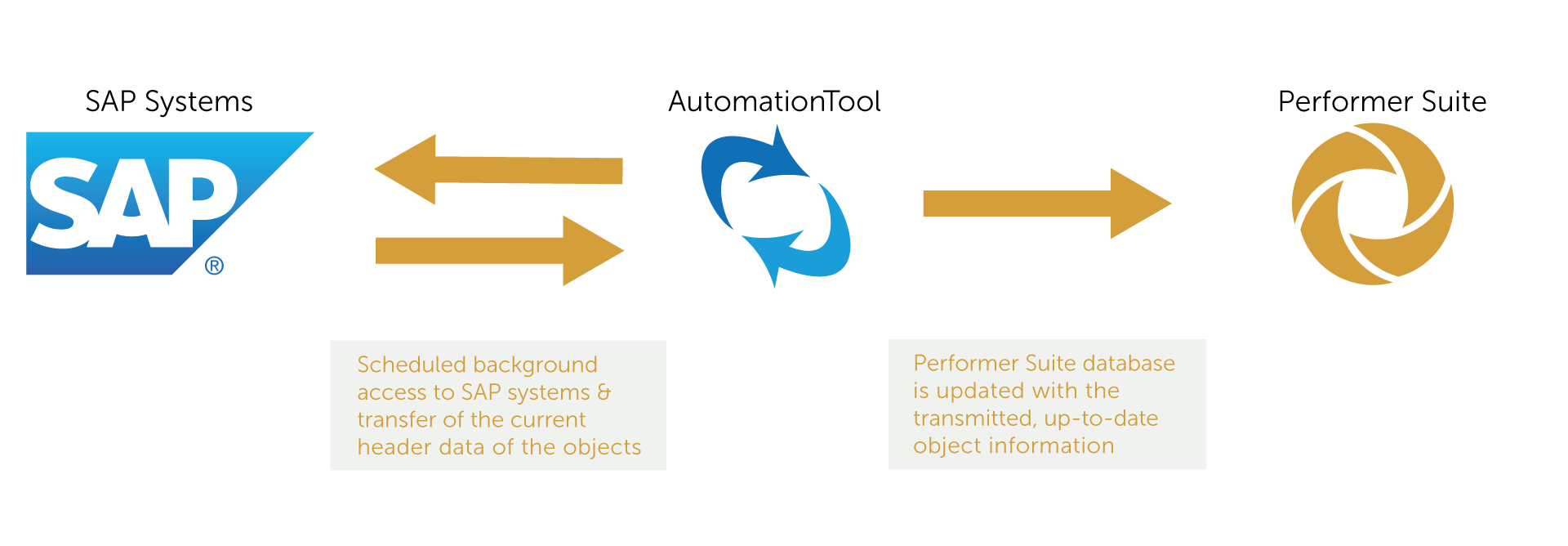
With the AutomationTool you can schedule an automated background SAP synchronization - preferably at night.
Especially when using the Performer Suite (PS) with a central database (SQL Server /Oracle), this has the great advantage that up-to-date data is available to all PS Users without the need for manual SAP synchronization during working hours.
As of 15.1.0, the AutomationTool (formerly: SyncTool) works with Windows services, so that synchronizations can run even more efficiently in the background.
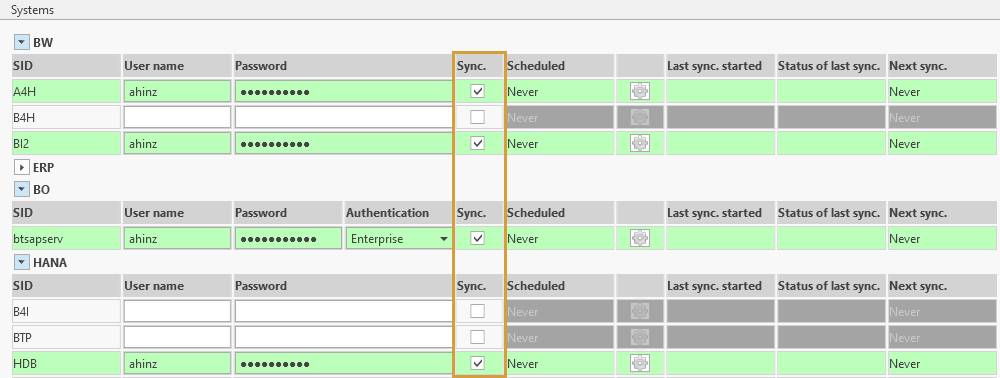
To be able to schedule a synchronization, the "Sync." checkbox must be enabled for the respective SAP systems:
Scheduling of Synchronizations
Automatic synchronization in the background can only be performed if the services have been previously installed (learn more).
Synchronizations can either be scheduled for all listed SAP systems or individually.
Scheduling for all Systems
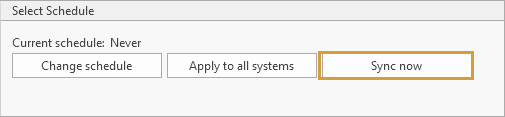
With Sync now you can immediately synchronize all SAP systems for which the "Sync." checkbox is activated and credentials are valid (green row).
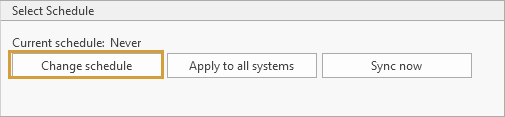
You can use the button Change schedule to select an interval of the SAP synchronization.
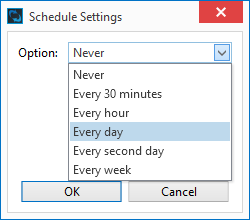

With the button Apply to all systems, the chosen time can be applied to all your systems.
Your chosen time is now displayed in the column "Scheduled".
Scheduling Synchronization for individual systems
The gear icon opens the schedule settings for a single SAP system.
After you have confirmed the settings with OK, the selected time is displayed in the "Scheduled" column:

The latest synchronization status is displayed in the "Last Synchronization Status" column:
-
= Synchronization successful
-
❌ = Synchronization ran into error (→ check “PerformerSuiteServices.log” for detailed cause)

The next upcoming synchronization is displayed in the "Next sync." column:

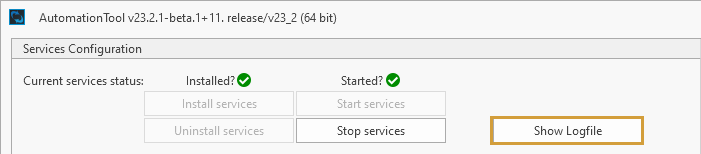
If the SAP synchronization was not successful, we recommend checking the log file:
Other topics you might be interested in: